
Credentials Enrollment
Lesson 9 of 21Enroll Your Fingerprint
In this section, we are going to guide you through the process of enrolling your fingerprints for secure and quick access.
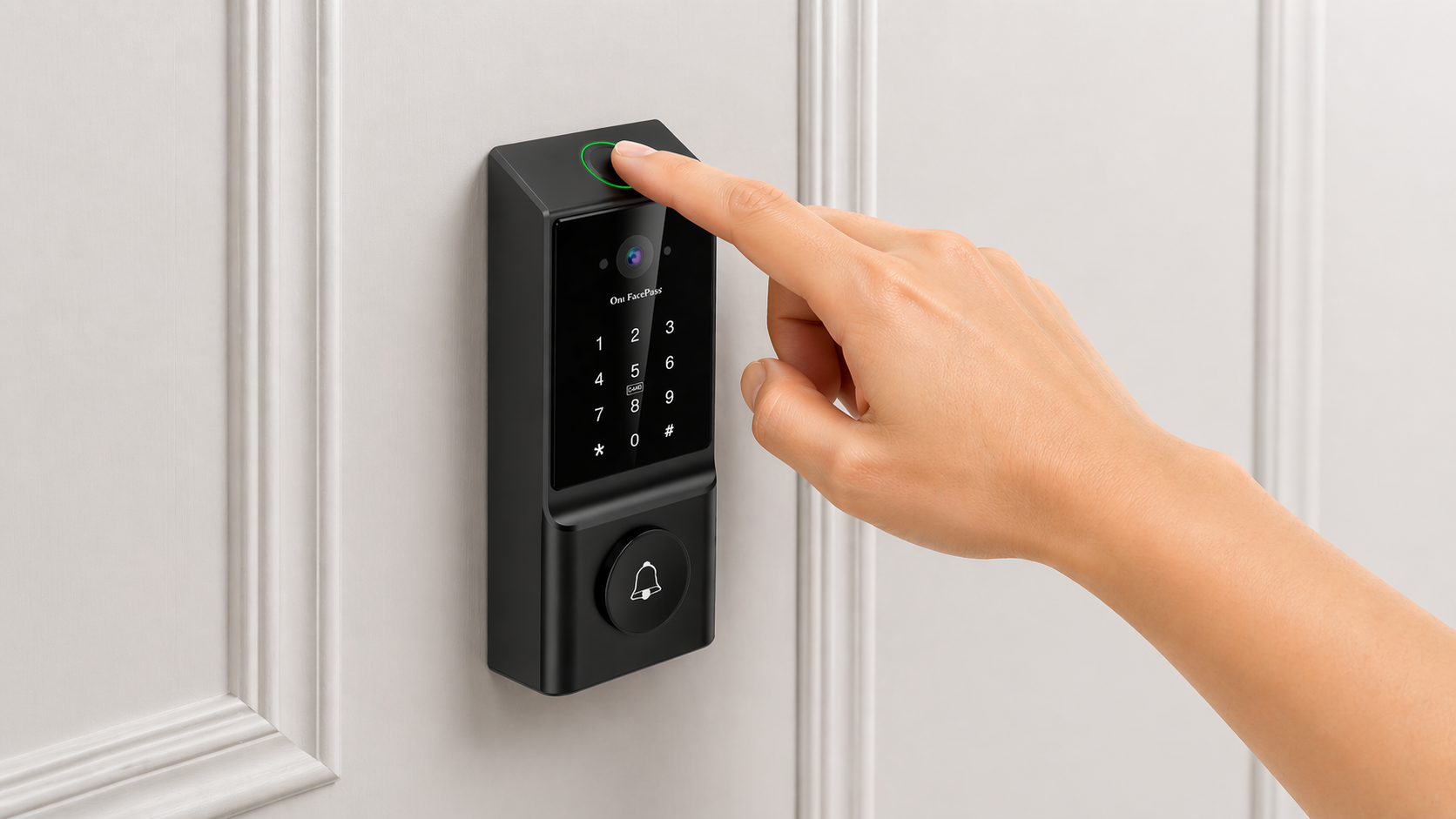
Follow the prompts in the mobile app or on the device to enroll your fingerprints. During enrollment, place your finger on the fingerprint scanner/sensor in different angles in each capture to ensure a complete and accurate scan. You will need to lift your finger in between each scan, for a total of six (6) scans, and you should see a count down of scans remaining on the keypad.
If you enroll your fingerprint via the mobile app, you will be prompted to assign a easily identifiable name to your fingerprint profile. You may enroll multiple fingerprints under your user profile for added convenience.
Fingerprint Enrollment Tips
- Ensure your finger is dry and clean
- Ensure the fingerprint scanner/sensor on the smart lock is dry and clean
If your finger tends to get sweaty or your fingerprint is worn, it is recommended to use other ways to access the smart lock.
Privacy & Security
Your fingerprint profile is stored securely on the device only.